How to Nuke Your Gmail and Forward Messages to Proton
I recently switched to Proton Mail and migrated my existing messages over. This transition involved updating several online accounts with my new address. Once the migration was finished, I deleted all data from my Gmail account, including Sent, Spam, Junk, and Trash, since my emails were now safely imported and stored in Proton. Over the following months, I found that most incoming Gmail messages were either spam or newsletters that I quickly unsubscribed from. To ensure I don't miss the occasional legitimate message, I configured Gmail to forward all incoming mail to my Proton account.
To set this up, I navigated to Gmail Settings > See all settings > Forwarding and POP/IMAP and selected the option to "Forward a copy of incoming mail to" my Proton email address, then chose "delete Gmail's copy" from the dropdown menu.
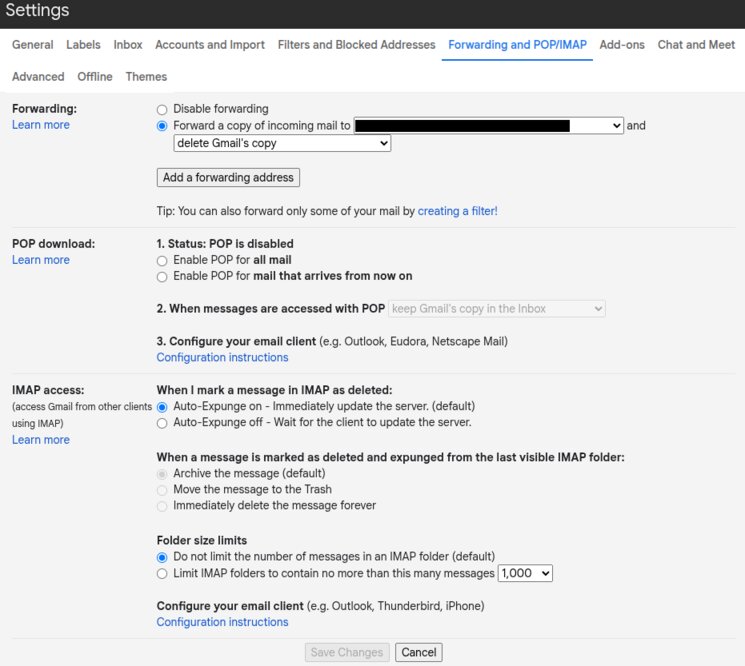
While this works well, there is a catch: when Gmail "deletes" a message after forwarding, it actually moves it to the Trash folder where it sits for 30 days. To keep my old account truly empty, I wanted to find a way to bypass the Trash and permanently delete those forwarded messages immediately.
This led me to Google Apps Script. It is a cloud-based JavaScript platform powered by Google Drive that allows you to integrate with and automate tasks across Google products, which was exactly what I needed.
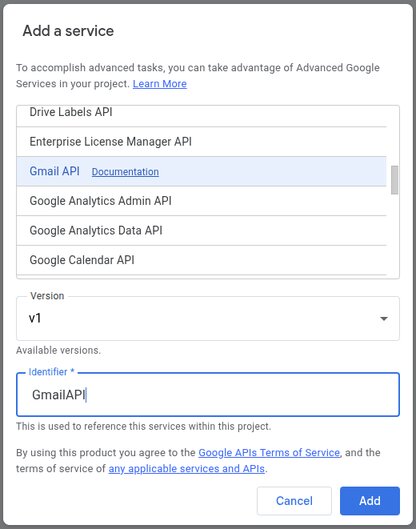
I navigated to the Apps Script dashboard and clicked New Project. I named the project GmailNukeTrash, then clicked Services and selected the Gmail API. I set the Identifier to GmailAPI and clicked Add. With these settings, the script has permission to interact with the Gmail account, enabling automation via custom triggers or time-based intervals.
We are now ready to create the script that will monitor and permanently purge your Spam, Junk, and Trash folders.
Inside the Editor tab, replace any existing placeholder code with the following function:
function GmailNukeTrash() {
    const userEmail = 'me';

    // Clean Spam
    const spamThreads = GmailApp.search("label:Spam");
    spamThreads.forEach(thread => GmailAPI.Users.Threads.remove(userEmail, thread.getId()));
    Logger.log("Nuked " + spamThreads.length + " spam threads.");

    // Clean Junk
    const junkThreads = GmailApp.search("label:Junk");
    junkThreads.forEach(thread => GmailAPI.Users.Threads.remove(userEmail, thread.getId()));
    Logger.log("Nuked " + junkThreads.length + " junk threads.");

    // Clean Trash
    const trashThreads = GmailApp.getTrashThreads();
    trashThreads.forEach(thread => GmailAPI.Users.Threads.remove(userEmail, thread.getId()));
    Logger.log("Nuked " + trashThreads.length + " trash threads.");
}
This script leverages the GmailAPI.Users.Threads.remove() method to immediately purge messages. While this version targets specific labels, it is easily customizable if you wish to include other folders.
The final step is to automate the execution. To do this, expand the left sidebar, select Triggers, and then click Add Trigger to open the configuration menu.
- Choose GmailNukeTrash as the function to run.
- Set the event source to Time-driven.
- Select Minutes timer as the type of time-based trigger.
- Set the minute interval to Every minute.
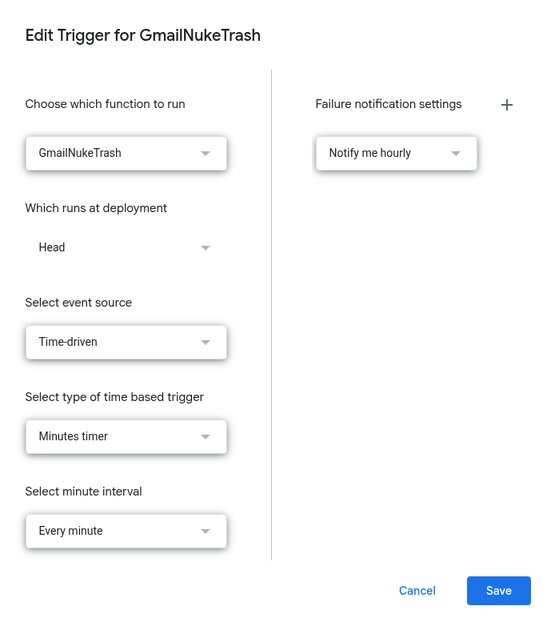
With the trigger active, the script will run automatically every minute to purge any messages appearing in your Spam, Junk, or Trash folders.
To test the setup, send an email from your Proton account to your Gmail address. The message should be forwarded back to your Proton inbox. If you monitor your Gmail Trash folder, the message might be visible briefly before the next script execution permanently removes it.
That is it. Your Gmail account will now remain completely empty, ensuring no residual data or old emails exist.
I recommend implementing this automation only after you have successfully migrated your data to Proton and updated your online accounts with your new address. It is also wise to monitor your Gmail activity for a few months before enabling the auto-purge. This grace period allows you to unsubscribe from newsletters and identify any forgotten accounts that still use your old address. If you receive an email from a service you missed, take a moment to update your profile settings immediately to ensure a seamless transition.
Recent blogs
- August 9th 2026 - DIY Smart TV Media Center Dashboard: Fullscreen App Launcher for Debian and Xfce
- June 11th 2026 - How to Nuke Your Gmail and Forward Messages to Proton
- May 12th 2026 - Self-Hosted Retro Gaming: RetroAssembly via Docker. Play your retro game collection on your Steam Deck
- All blog posts