DIY Smart TV Media Center Dashboard: Fullscreen App Launcher for Debian and Xfce
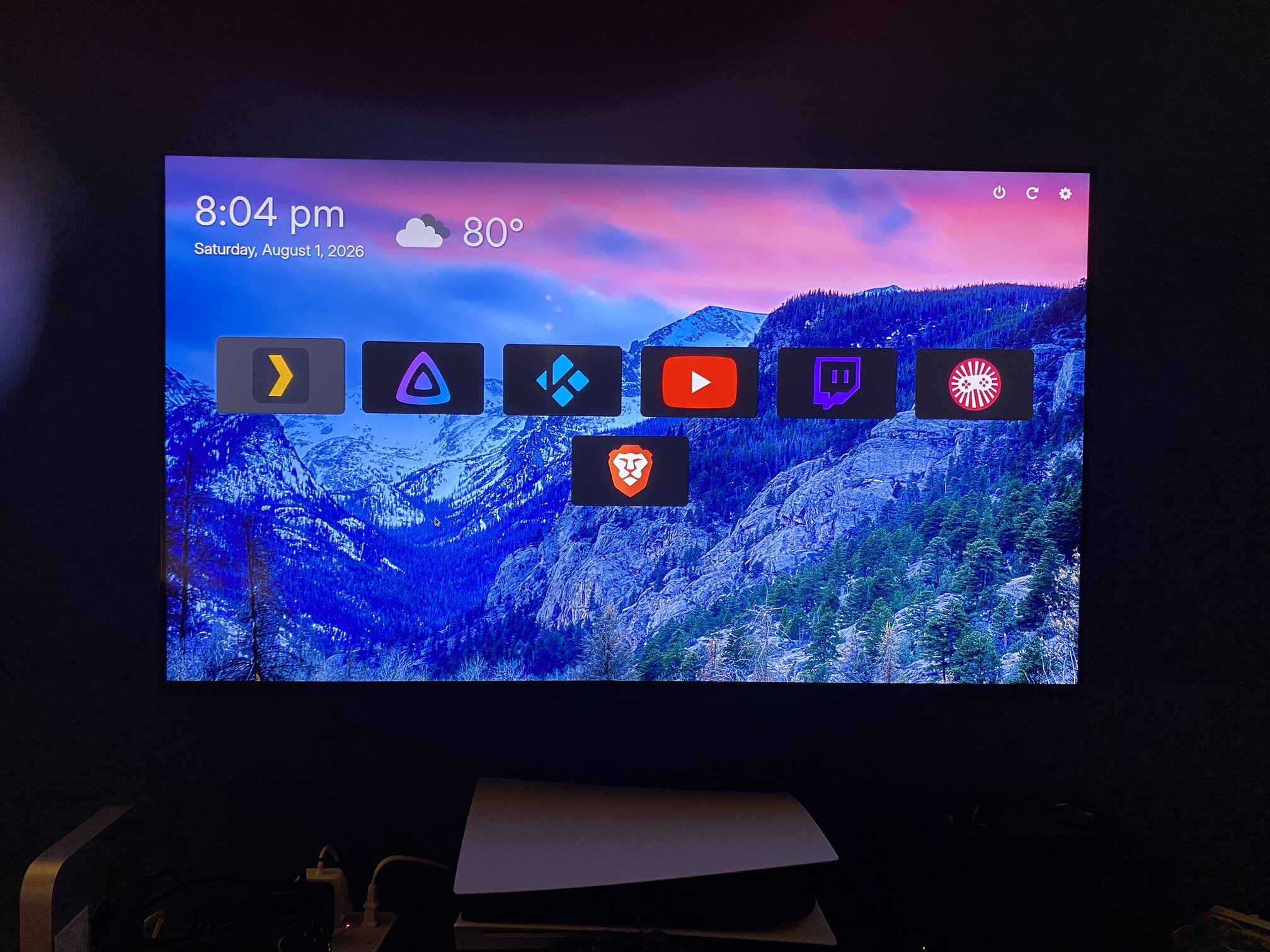
The Story
I used Amazon Fire TV sticks on all my TVs for years. They worked, but the ads, tracking, recommendations, and clutter grew annoying. I only used a handful of apps and had privacy concerns because Fire TV required an Amazon account.
I found five 2011 Mac Minis on eBay during the Raspberry Pi shortage and decided to repurpose them as basic media-center PCs. They are older Intel i5 machines that output 1080p—good enough for this use case.
I built a Python/Flask web app that starts on boot and presents a custom Smart TV-style UI in fullscreen kiosk mode. I chose Debian with XFCE because it's lightweight and flexible for the tweaks I wanted.
As a web developer, I used Flask for the frontend so the UI could be built with JavaScript, CSS, and JSON configuration files. Several Linux media-center apps exist (Plex HTPC, Jellyfin Desktop, Kodi, VacuumTube), but I wanted a single curated home screen with only the apps and tools I use.
The Concept
On boot, a bash script starts the Flask app and opens http://localhost:8080 in a browser with --kiosk. I run each site as its own web app (using --name) so it gets its own .config directory and behaves more like a desktop application.
Native desktop apps launch with commands like flatpak run rocks.shy.VacuumTube --fullscreen. I prefer Flatpak for sandboxing and consistency across machines.
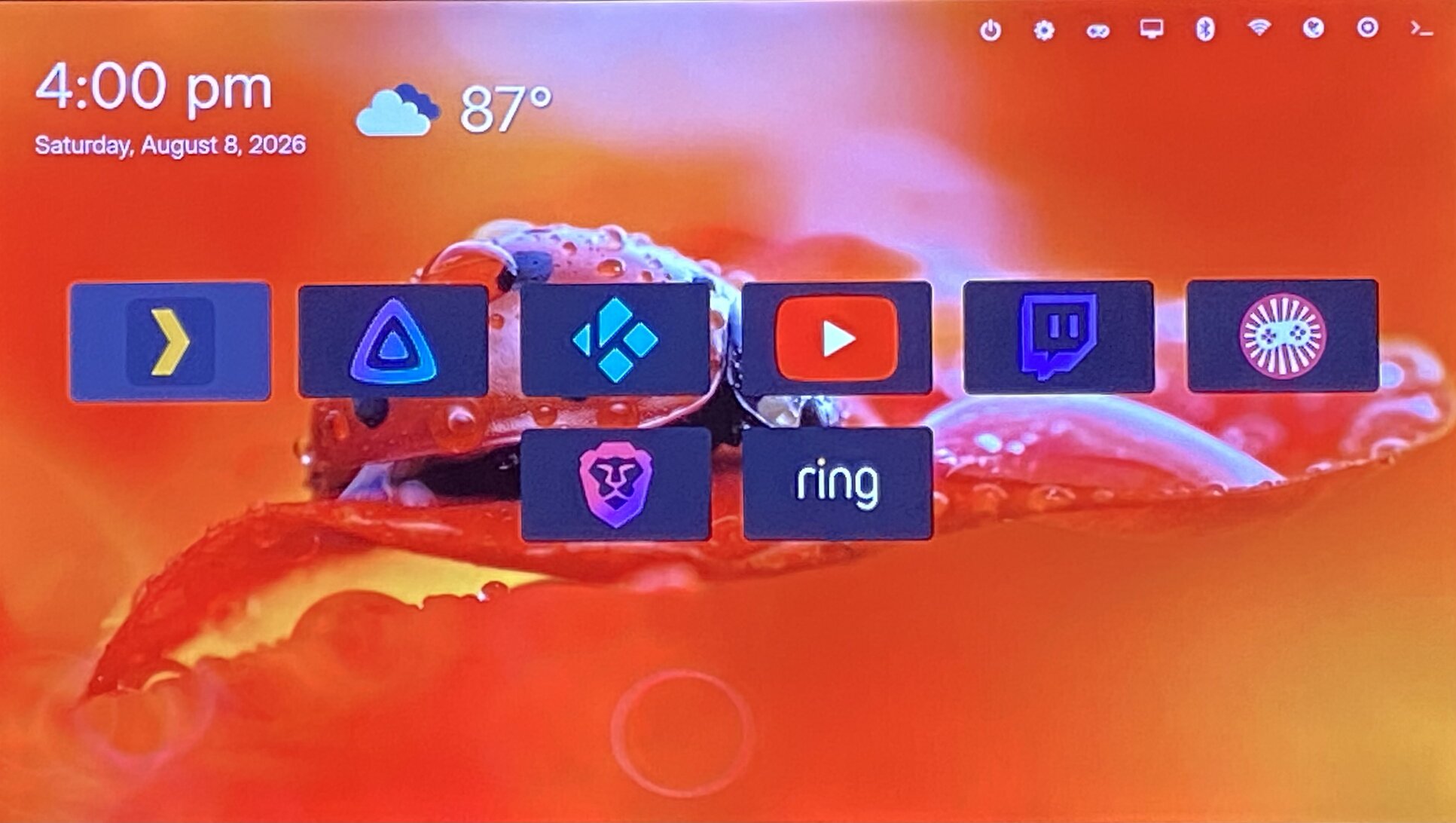
Tools and settings appear as icons in the top-right corner and launch things like xfce4-settings-manager, xfce4-session-logout, Bluetooth settings, Network Manager, and audio controls.
The UI is keyboard-navigable (arrow keys, Tab/Shift+Tab), so a wireless PC remote such as the MX3 Pro works well.
The Process
I installed Debian with XFCE, enabled SSH, and added the non-free and non-free-firmware repositories for Wi‑Fi and Bluetooth support on the older Mac Minis.
I installed the browser, Flatpak, and kiosk utilities like xdotool, wmctrl, unclutter, input-remapper, network-manager, bluez, and pavucontrol.
I enabled Flathub, installed the dashboard apps I wanted (Plex, Jellyfin Desktop, Kodi, VacuumTube), cloned the smart-dashboard repository, created a Python virtual environment, installed requirements, and used run.sh to start the Flask server and launch Brave in kiosk mode.
LightDM auto-logs my user in and I add run_always.sh to XFCE Session and Startup so the dashboard opens on boot. That script relaunches the dashboard after a short delay if it exits, and a confirmation dialog appears when trying to close it with Alt+F4.
To keep the experience clean I disabled XFCE panel autostart, turned off screen blanking with xset -dpms s off, saved a minimal session, and replaced xfce4-desktop with a dummy executable so no desktop icons appear. I also removed default XFCE keyboard shortcuts, set workspaces to 1, made HDMI audio the default, and removed unnecessary startup apps.
The server.py script disables right-click menus for web apps so kiosk mode is enforced.
Configuration & Behavior
The dashboard uses JSON files for configuration: apps.json, tools.json, and weather.json. Images dropped into static/backgrounds/ are discovered automatically and rotate with a dissolve effect.
A fullscreen option in the JSON forces apps fullscreen using wmctrl; this works for apps and dialogs (like xfce4-settings-manager and nm-connection-editor) so the interface feels more like a single-task Smart TV.
For navigation I used input-remapper-gtk to program an MX3 Pro remote—home sends Alt+F4 to close the running app and return to the dashboard. Many apps include their own on-screen keyboards, and the remote's backlit keyboard is also usable.
The Result
The media center boots quickly and opens the dashboard UI immediately. My current setup includes:
- PlexHTPC
- Jellyfin Desktop
- Kodi
- VacuumTube
- Twitch Multi-Viewer
- Brave Search
- Ring doorbell cam via Scrypted
- RetroAssembly from my home server Docker containers
- LocalSend for easy file transfers
- ProtonVPN Flatpak that starts on boot and is automatically minimized
- system tools for settings, logout/shutdown/reboot, network, Bluetooth, and audio
- XFCE Terminal for quick edits to JSON config files or Flatpak installs
The dashboard stays pinned as the home screen; closing an app returns to the interface and the run_always.sh script ensures the dashboard relaunches if it exits.
Conclusion
After a week of daily use the setup has been stable and useful. It provides a simple, self-hosted media center with no ads or tracking, showing only the apps I want.
Starting from Debian and XFCE let me remove what I didn't need while keeping familiar tools like xfce-settings-manager, saving time versus rebuilding everything on a minimal window manager.
If you want a clean living-room interface that's fully under your control, this is a good, configurable starting point.
Here is my current setup as of the writing of this blog post.
Check out the project on my Github: https://github.com/teklynk/smart-dashboard"
Recent blogs
- August 9th 2026 - DIY Smart TV Media Center Dashboard: Fullscreen App Launcher for Debian and Xfce
- June 11th 2026 - How to Nuke Your Gmail and Forward Messages to Proton
- May 12th 2026 - Self-Hosted Retro Gaming: RetroAssembly via Docker. Play your retro game collection on your Steam Deck
- All blog posts